


Wedding Invitation Card Maker
4.525.00 Reviews
App Specs
- Version
- 3.1.1.1
- Updated On
- License
- Free
- Downloads
- 1,000,000+
- Developer
- Galaxy studio apps
- Categories
- Events
- Platform
- Android, iOS
Screenshots
 Analysis by AppCompare
When I use a wedding card app, the real test is not how many designs it puts on screen; it is whether I can make a clear invitation without getting bogged down in decisions. Wedding Invitation Card Maker is aimed at that practical job, with a focus on wedding invitations and anniversary cards. I’d consider it when I want a personal-looking design and a quick way to share it, rather than a full wedding-planning toolkit.
Getting Started with the App
The app is free to install, is developed by Galaxy studio apps, and is listed for Everyone. Its current version is 3.1.1.1, with Android 8.0 as the minimum OS. It has an average rating of 4.5 from around 17 thousand ratings and over a million installs, so it has attracted a sizeable audience. Optional in-app purchases range from $0.99 to $99.99 per item, which is worth keeping in mind before committing to any paid choice.
I would start by checking that the device has a steady connection and enough room to save or share the finished design. Those are simple checks, but they can prevent a frustrating first session if an image takes time to load or an export does not complete. The app is free to try, but I would look carefully at any purchase prompt and confirm its price before proceeding, especially if I am only exploring templates.
The most common sticking point in a card-making task is not the design itself but deciding what information belongs on the card. Before opening a template, I’d gather the names, event date, venue details, and a short response instruction. That way, I can spend time arranging the invitation instead of repeatedly switching away to find missing details. For an anniversary card, I’d similarly decide whether the message is meant for a partner, family, or guests before choosing a tone.
After a quick sign-up process, you’re ready to dive into the world of creative wedding invitation designs. What I really loved was how intuitive everything felt. The app doesn’t bombard you with unnecessary features. Instead, it focuses on what you really need: simple, beautiful, and customizable invitation designs.
Choosing a Design Without Losing Time
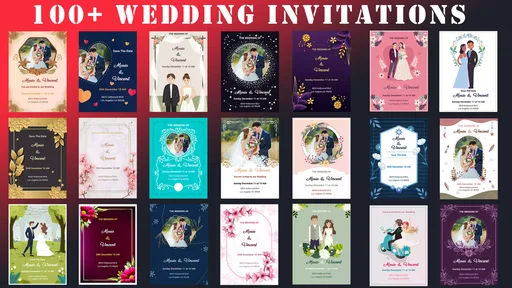
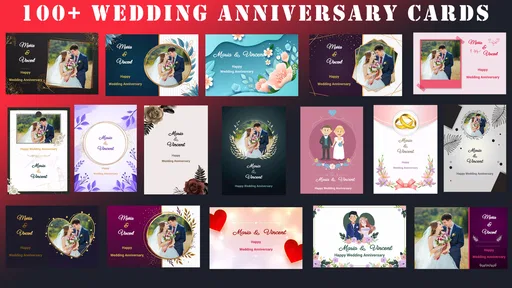
Now, onto the fun part—designing! The app offers a plethora of templates that cater to a variety of styles, whether you’re going for something classic, modern, or totally unique. I found myself experimenting with different templates for hours. The app makes it easy to adjust colors, fonts, and layouts. You can even add your own images to make the invitation truly yours.
One useful way to avoid getting stuck in endless browsing is to choose a template based on the amount of text you need, not just its colors or decoration. A design that looks lovely with a short announcement may feel cramped once you add a venue and response details. I’d compare a couple of candidates using the same wording, then choose the one that keeps the important information easy to scan. That small test is more helpful than judging a blank template alone.
Worth Reading Before You Choose

Flipboard Shows What News Apps Must Do Beyond the Feed

Switching to Android Auto Means Rethinking Your Driving Routine

Google Calendar Makes a Crowded Week Easier to Manage

Ludo King Makes the Most of the Minutes Between Plans

Baby Panda World Brings Quick Play to Modern Phones, but Its Game Library Feels Busy

ESPN’s Live Game View Makes Following Close Games Easier
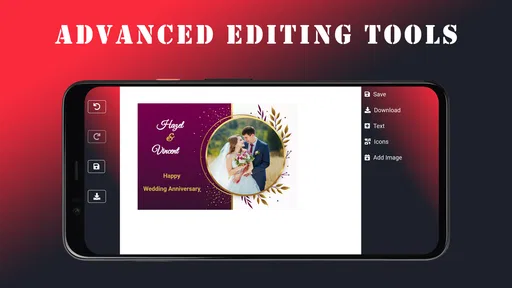
One feature that really stood out was the drag-and-drop functionality. It's as simple as it sounds and makes customizing your invite a total breeze. Plus, there’s a handy preview feature that lets you see what your invite will look like on both mobile and desktop, which is super helpful.
That preview is especially useful when deciding how much detail to include. Guests may read a digital invitation on a small phone screen, while a printed version can be viewed at a different size. I’d zoom in on names, date, and location, and make sure decorative text does not compete with them. If the card feels crowded, shortening a greeting or moving extra information into the message that accompanies the invite is often a better fix than shrinking everything.
Sharing, Printing, and a Sensible Final Check
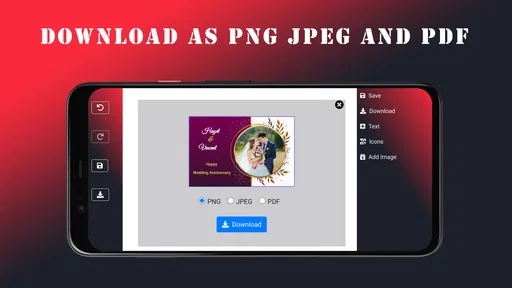
Once you’ve crafted the perfect invite, the app offers multiple sharing and printing options. You can easily send your invitations via email or share them on social media directly from the app. For those who prefer a tangible invite, the app also provides high-quality print options. You can download your design and print it at home or send it to a professional printer.
Before sending a batch of invitations, I would share a draft with one trusted person and ask them to check the details, rather than only asking whether it looks pretty. A second reader is more likely to catch a mistyped date or missing location. If you plan to print, inspect the saved design at its intended size and confirm that the text remains legible; a screen preview is useful, but it cannot replace checking the actual file and a test print.
The app even offers a list of recommended printing services, which is a nice touch. I tried out a couple of these services, and the results were fantastic. The quality of the prints was top-notch, and the colors matched perfectly with what I saw on screen.
For a small guest list or a last-minute change, sharing a digital version can be less cumbersome than producing a new set of physical cards. For a formal event where keepsake paper invitations matter, the print route may suit the occasion better, but it also makes proofreading and choosing a final design more important. I would treat digital and print as two different delivery decisions, rather than assuming the same layout will feel equally effective in both settings.
Recovering from a Snag
Throughout my time using the app, I found the overall user experience to be smooth and hassle-free. The app is regularly updated, ensuring that any bugs are quickly fixed. This kind of reliability is exactly what you need when planning something as important as a wedding.
If a design seems not to save or share as expected, I’d first check the connection, wait for the current action to finish, and try again before rebuilding the card. Keeping the wording somewhere separate while working is also a sensible safeguard: it makes it easier to recreate text if I need to reopen a design. If the problem appears only with one image, I’d try the card without that image to see whether the issue is tied to the file rather than the invitation as a whole.
If you ever run into any issues, the app provides excellent customer support. There’s an in-app chat feature that connects you with support staff who are quick to respond and genuinely helpful.
Not every awkward result is necessarily an app problem. A design can look different across screens because brightness and color settings vary, and a printer may render colors differently from a phone display. I’d avoid making repeated color changes based only on one screen, and instead check the saved version or a sample print before deciding the template has failed. If an invitation is difficult to read, simplifying its wording and layout is usually a more useful first move than adding more decorative elements.
Who Will Get the Most from It
This is a good fit for someone who wants to make an invitation or anniversary card without learning a complicated design program. It can also help a couple divide the work: one person can prepare the event details, while another compares layouts and checks the final wording. For a casual celebration, a personalized digital card may be all that is needed. For a more traditional event, the ability to prepare a design and consider printing gives the process another option.
Compared with a general graphic-design app, a wedding-focused card maker can make it easier to start from an invitation rather than a blank canvas. A general design tool may be better for someone who wants precise control over every element or needs to build a larger set of matching materials. A paper stationery service, meanwhile, may be preferable when professional production and physical samples matter more than making quick edits yourself. The trade-off here is convenience and approachable customization versus the deeper control or production support those alternatives may offer.
I would skip this app if I need a complete planning system for guest lists, schedules, budgets, or vendor coordination; its purpose is making cards, not managing the entire event. I’d also choose a different route if exact print specifications or a highly distinctive bespoke design are essential. The app is most useful when the goal is a presentable invitation made with little design experience, and the user is happy to review the details carefully before sending it.
My Practical Verdict
All in all, the Wedding Invitation Card Maker app is a fantastic tool for anyone looking to create beautiful, personalized wedding invitations without the stress. It combines ease of use with a wide range of customization options, making it suitable for any couple.
Whether you’re tech-savvy or not, this app makes the process of designing and sharing your wedding invitations incredibly simple and enjoyable. So, if you’re in the midst of wedding planning chaos, I highly recommend giving this app a try. It might just save you a lot of time and headaches, and who doesn’t need that when planning a wedding?
My recommendation is to use it with a short checklist: settle the wording first, compare designs using the real text, inspect the preview on a phone-sized screen, and proofread before sharing or printing. That workflow keeps the app focused on what it does best: turning event details into a card people can understand and enjoy. With those checks, it is a practical free starting point for invitations and anniversary greetings, while paid items and more specialized design needs are reasons to pause and compare alternatives.
Pros
- User-friendly interface for easy design.
- Wide range of templates and styles.
- Customizable fonts and colors.
- Includes RSVP management feature.
- Offline editing capability.
Cons
- Limited free template options.
- In-app purchases can be pricey.
- Occasional ads disrupt workflow.
- Limited font customization.
- No direct social media sharing.
FAQs for Wedding Invitation Card Maker
What features does the Wedding Invitation Card Maker offer?
The Wedding Invitation Card Maker app provides a variety of templates, designs, and customization options to create personalized wedding invitations. Users can choose from different themes, fonts, and colors to match their wedding theme. Additionally, it offers tools for adding photos, stickers, and personalized text, ensuring a unique invitation for every user.
Is the app user-friendly for beginners?
Yes, the Wedding Invitation Card Maker is designed to be user-friendly, making it accessible for beginners. The interface is intuitive, with step-by-step guidance throughout the design process. Users can easily navigate through templates and customization options, ensuring a seamless experience, even for those with no prior design experience.
Can I share my invitations digitally?
Absolutely. The app allows users to share their wedding invitations digitally via email, social media, or messaging apps. Once you’ve designed your invitation, you can save it in various formats suitable for digital sharing, making it easy to reach guests quickly and conveniently.
Are there any costs involved in using the app?
The Wedding Invitation Card Maker app is free to download, but it may offer in-app purchases. These purchases could include premium templates, advanced design tools, or additional customization options. Users can choose to use the free features or opt for paid enhancements depending on their needs and preferences.
Is it possible to print the invitations I create?
Yes, you can print the invitations designed with the Wedding Invitation Card Maker. The app provides high-resolution export options, ensuring your cards maintain quality when printed. You can choose to print them at home or send the files to a professional printing service for a more polished finish.


